Tuesday, February 2, 2016

Disable Windows 10 Upgrade for Workstations on an Active Directory Domain via Group Policy

Microsoft has started to push the free upgrade to Windows 10 on small business domains.  I thought this might be a good time to post a short reminder on how to prevent this.  If you are using WSUS and have not accepted updates KB2952664 and KB3035583 then you should be safe for now.

I tend to be a bit paranoid so went ahead and pushed the blocking registry keys out on those clients with WSUS anyway . . .

According to Microsoft you can block this upgrade entirely on all workstations on your network, as well as turn off the nagging upgrade popup/notification, with two registry key additions.

If you are running a Domain Controller / Active Directory you can push these simple registry keys to all computers under that server.  Alternately you can download and install an update on the AD Server and push the same settings out with a new template.  I chose to use the simple approach for now.

More information from Microsoft on these settings (and how to later reverse them) is on their knowledge base article: How to manage Windows 10 notification and upgrade options.

Note: the following method requires that workstations running Windows 7 have the March 2016 Windows Update Client - kb3138612 at a minimum.  Newer Update Clients also work.  Older ones will not "see" the registry keys below and may still be upgraded fully to Windows 10 by accidentally clicking the wrong thing.

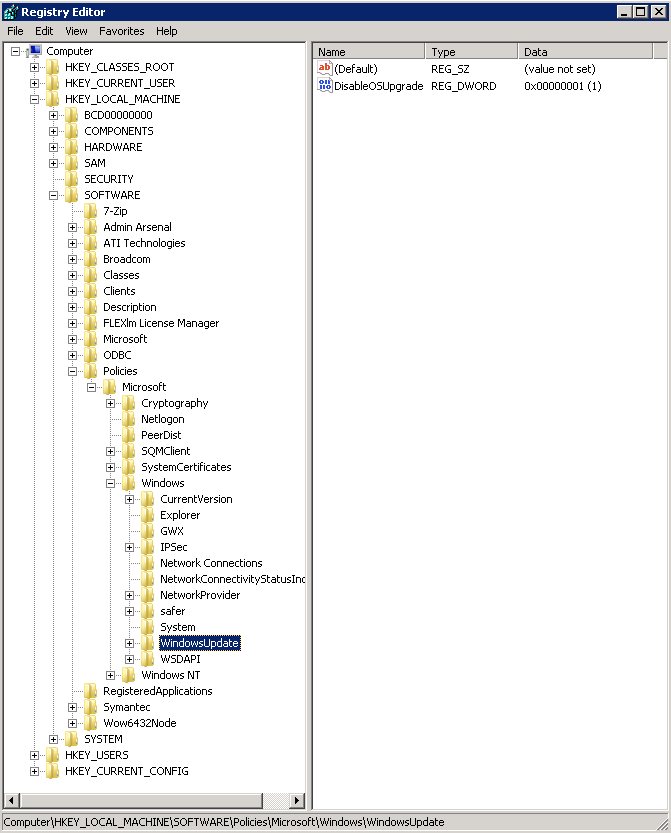
The two keys we want look like this - and you can manually import these into any workstation running Windows 7 or 8.1 to prevent upgrades - no domain needed.

Important!  Note the Odd CaPitaliZation on the keys below - they must be entered exactly as shown.

Windows Registry Editor Version 5.00

[HKEY_LOCAL_MACHINE\SOFTWARE\Policies\Microsoft\Windows\GWX]
"DisableGwx"=dword:00000001

[HKEY_LOCAL_MACHINE\SOFTWARE\Policies\Microsoft\Windows\WindowsUpdate]
"DisableOSUpgrade"=dword:00000001


To push these out via Group Policy:

1) on the domain controller server open the Group Policy Management console.

2) for our purposes we will Edit the Default Domain Policy

3) navigate to Computer Configuration, Preferences, Windows Settings, Registry

4) right click Registry and select New, Registry Item

5) Create an Update rule for HKEY_LOCAL_MACHINE
with Keypath: SOFTWARE\Policies\Microsoft\Windows\GWX
and Value: DisableGwx
And Type: REG_DWORD
and Value Data: 1
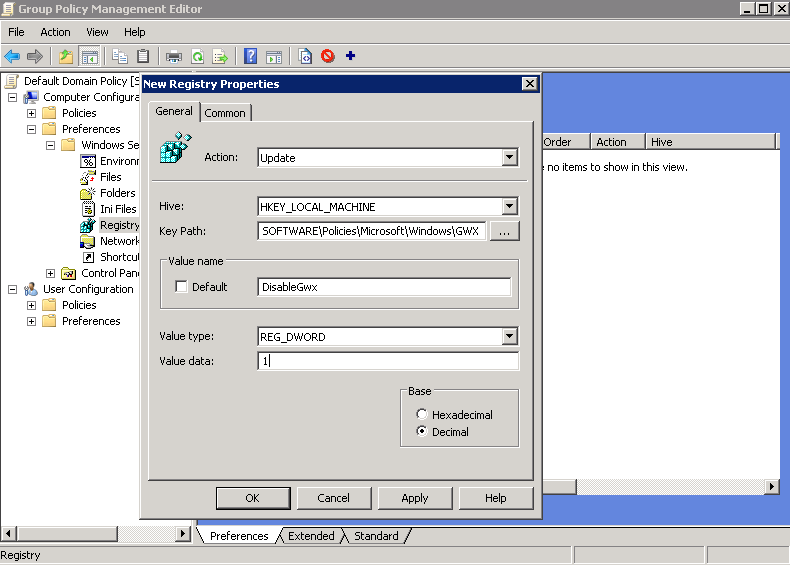


DisableGWX Domain Policy

Click OK and lets do the second key!

6) Same place - right click Registry and select New, Registry Item

7) Create an Update rule for HKEY_LOCAL_MACHINE
with Keypath: SOFTWARE\Policies\Microsoft\Windows\WindowsUpdate
and Value: DisableOSUpgrade
And Type: REG_DWORD
and Value Data: 1


DisableOSUpgrade Group Policy   


Here's what you should see when you check your work (right click the below image and View to see it all)


Right Click and View to see the entire image : Domain Policy - checking for errors


And here is the test on a client machine after forcing a Group Policy update:


Remember to reboot all the clients - this policy is delivered during startup of the target machine, also reboot if you manually applied these registry keys.


Cheers!

Tuesday, December 8, 2015

KB3114409 - Patch Tuesday December 2015 causing Outlook 2010 to open in Safe Mode only

Outlook 2010 will open only in Safe Mode?

Another broken patch from Microsoft came at us this month.  KB3114409 may cause some users to be unable to open Outlook 2010 except in Safe Mode.  No custom settings are retained, your views and options will always revert to safe defaults every time you open Outlook.

For now removing KB3114409 from your workstation cures the problems.  I suspect MS will re-issue this patch in the next week - so you can either hide the update after removing it (if you have automatic updates this is recommended) or ignore it if your updates are set to manual.

WSUS operators should reject this patch on their corporate networks for now.


Friday, September 4, 2015

SmartThings and expanding Mobile App permissions - privacy going the wrong direction

I've been using SmartThings home automation controller since basically it's release to the public last year.  There have been some growing pains with the system - some of it due to my learning curve, and some due to bugs that they have generally fixed fairly quickly.

This morning I was faced with a very difficult decision regarding their mobile apps.  Major update coming down the tubes from their system to all my mobile devices, along with a big red flag.

This app requires (new) additional permissions:  Contacts and Wi-Fi Connection Status.

I get the Wi-Fi status thing.  But Contacts?   Ummm . . . no.

To their credit I received a very quick response when I posted a complaint on their forum - but it was to explain why they needed this new permission. 

 Quote:
"Contacts access allows greatly improved notification options for SmartApps like Smart Home Monitor. "

I remain unconvinced. 

Sadly, I may have to change my controller.  Worse, this controller was one of the few (if not the only) that provided a mobile app for all three platforms:  iOS, Android and Windows mobile.  I really hate losing that cross platform compatibility.

For now I intend to defer the update and wait and see how long the old version of their App works until I'm cut off.  Perhaps they will change this in the near future.  If not . . . back to research mode for me.


Friday, August 28, 2015

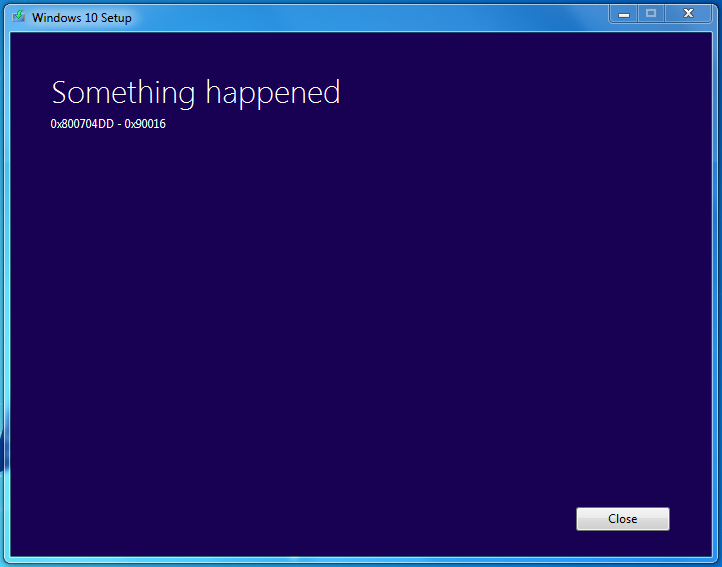
"Something Happened 0x800704DD - 0x90016" Windows 10 Media Creation Tool (Solved)


"Something Happened 0x800704DD - 0x90016"


Came across this error while attempting to download the Windows 10 Installer to a blank USB drive using the Media Creation Tool from Microsoft.


Disregarding the inherent humor involved about how useless this error is for a normal end-user, the solution turned out to be simple:

Scenario:  you were logged onto the host machine as a Standard user, you ran the Media Creation Tool, which popped up the request for the local administrators credentials, which you provided.  Then you got the error . . .

Solution:  Log out of your standard user account, then log in as a local administrator. Run the Media Creation tool and all should be well.

Notes:  This goes against the long running advice that I and others have preached for years - don't run your daily usage work as a local admin account, instead set your normal account as a Standard User.  But if you followed all the steps of the advice then you created a real admin account for those times you needed to install or update things.  That model usually worked from your standard account by entering the credentials for the admin account into the resulting popup window when you launched an installer.  Trouble is, even though in this case the popup DID ask for the admin password, the media creation tool broke.  

Classic case of Microsoft not playing by their own rules.

Let me know in the comments if this helped, or not - and if not if you found a solution (and please, what that solution was for you.)

Cheers!

Saturday, August 16, 2014

August 2014 Patch Tuesday Blues: BSOD after patching Microsoft Windows 7 x64


A few machines running Windows 7 under my client list started blue screening on boot right after the August 2014 patches from Microsoft were installed.

Microsoft is aware of the problem impacting a very few workstations (relatively speaking - we're still talking perhaps many thousands out of millions) and is working on a fix.  This does not help if you can't boot into the system to apply that fix when it eventually appears in Windows Updates.

While we wait for Microsoft to re-release what appears to be a bad kernel patch related to fonts - here is a quick and dirty workaround to prevent the BSOD and return you to productive work. (Play?)

Either mount the system drive on another machine ( I use my handy USB dock ) or boot the bluesy machine into a CMD prompt using your favorite recovery method. (Windows Setup: Repair, many Linux bootstrappers, the Windows PE environment, etc.)

Locate and rename or delete the file:  FNTCACHE.DAT  in the "C:\Windows\System32\" folder.

Reboot back into the normal OS and you should be good to go.

Alternately you can restore from a previous working version using the boot menu if your system is set to create regular restore points.  If you do this, you should then hide the below listed updates in Automatic Updates before they get re-installed and cause the BSOD to return.

This appears to be related to one or a combination of the following KB's released this Tuesday:
KB2982791, and possibly KB2976897 or KB2970228.

~~~

UPDATE:  Microsoft has posted a more complete set of instructions on how to recover from the BSOD in this case at http://support.microsoft.com/kb/2982791
 . . . scroll down to the section titled "Known Issue 3."


Thursday, January 31, 2013

Small Business Server 2011 Console "Unexpected error occurred"

Note to all admins responsible for the care and feeding of Windows Small Business Server 2011:  Do NOT install December 2012s WMF 3.0 update on your server.


Error's you might already be encountering:

1) Odd popup error in the Windows Small Business Server Console when you edit almost anything:

 "Unexpected error occurred." 

Clicking help  . . . doesn't . . .  gee thanks Microsoft for the awesome nonsense error.

2) Creating a new user account fails to create their mailbox (and all following actions that depend on a mailbox existing also fail.)

3) Adding a new user mailbox or room/resource in the Exchange 2010 Console fails to set the proper permissions for the Exchange server to manage the mailbox. 

*( If you did not notice this problem, and you have created new mailboxes since the WMF patch was installed, you need to check them right away. Compare the permissions for a healthy mailbox - note that SYSTEM and three Exchange service accounts that should have rights to all normal objects are missing on the newer mailboxes. )*

4)  Exchange 2010 rollups fail to install and may exit without restarting the Exchange services.

5) PSConfig.exe fails to complete after patching Sharepoint. (You do run PSConfig after most patches, right?)


Resolution:
If you've been experiencing these errors then check your Windows Updates log for Windows Management Foundation 3.0 (KB 2506143).  The good news is you can safely Uninstall it. Be sure to reboot afterwards. 

Viola . . . all better.

Of interest is that Microsoft no longer offers that patch to SBS 2011 systems, but from mid-December through the new year 2013 it was listed as an optional patch.

Don't feel bad . . . I learned this one the hard way too.


Wednesday, December 12, 2012

Dexter - infecting a point of sale near you

Breaking news - more action steps to be provided later as I can find/collate/analyze it.

Two links for more information:

Dexter - Draining blood out of Point of Sales

"Dexter" malware steals credit card data from point-of-sale terminals

Quote: 
Dexter is stealing the process list from the infected machine, while parsing memory dumps of specific POS software related processes, looking for Track 1 / Track 2 credit card data. This data will most likely be used by cybercriminals to clone credit cards that were used in the targeted POS system.


Initial action steps recommended:

Merchants:
Check back end servers for unusual outgoing Internet activity. 

Run updated AV deep scans on all equipment in the Credit Card transmit path. (POS terminals, backend, database)

 . . . more forthcoming . . .

Consumers:

Stop using Debit cards (I've said this before).  Credit cards have much better fraud protection and won't cause you to lose your checking/savings account balances overnight if you get hit.

If you have shopped with your credit or debit card at any restaurant or merchant in the last three months, you should carefully check your transaction history for those cards - a good practice to do in any case and even more vital now. 


Friday, November 9, 2012

Dear Mr. President


Tuesday, August 14, 2012

Microsoft Update KB2647753 is broken (Fix it)

Update:  Looks like Microsoft has pulled the offending patch.  Expect it to be released again sometime in the near future - hopefully without further problems.  If you see a repeat update and don't want to apply the manual fix, simply force a new check for updates.  If you prefer to be fully patched, then you can proceed directly to the fix it section below.

 ~~~

One of the Recommended Updates for patch Tuesday of August 2012 is broken.  When you install updates and reboot, you will see the patch for KB2647753 presented.  Installing it (again and again) will not make it go away.  Each time it will claim to have been successful . . . but I'm not certain that's true.  Worse, your system may insist on attempting to re-install this patch every time you shut down your workstation - prolonging the shut down procedure.

Hopefully Microsoft will notice this problem later today or perhaps this week and fix the problem from their end.

Until they do, you have two options.

1) Ignore it, or hide it (not really recommended)

2) Fix the problem manually.


What is KB2647753?

It's a non-critical but recommended update to the printing core components for Windows 7 and Server 2008.  It does not apply to Server 2003 or Windows XP.


 Here's how to manually fix it:

a) Open your Control Panel, go to "Programs and Features" (also known as "Uninstall a program" if you use the Category view in Control Panel)

b) Click the link on the left to "View installed updates"

c) I recommend changing the view to Detailed view and sorting on Name, then scroll down to the Microsoft Windows section and locate:  "Update for Microsoft Windows (KB2647753)"

d) Right click KB2647753 and UNinstall it . . . wait for the process to complete.

e) Reboot your workstation

f) Get over to http://support.microsoft.com/?kbid=2647753 and download the full installer for this patch - make sure you get the right version for your OS including x86 versus x64.  You will be asked to allow Microsoft to Validate your Windows OS license.

g) Run that installer, let it complete, then reboot your workstation again.

h) Check your Windows Update, force a check for updates, and the repeat offender should now be gone. 

Hope this helps.


Monday, July 16, 2012

Close port 3389 (Remote Desktop) on your firewalls NOW


If you have allowed the Remote Desktop protocol direct access through your firewall (port 3389), and you have an answering RDP server behind it, you may soon be compromised with a very nasty ransomware takeover that encrypts your data files.

Picked up two new clients this week, both were attacked and taken over by a remote entity.  Both lost substantial company data.  One was saved by a rotating backup -- they were able to restore from that after the hack was shut down.  The other did not have an offsite backup, and they lost data that we will never recover.

The hacker did the following:

1) Installed a process that began encrypting all docs, pdfs, jpgs, and several other file formats into a secure RAR archive form.  It then secure deleted the originals.  The encrypted files look like
 yourfilename.txt(!! to decrypt email id 0000000 to securityxxxxx@gmail.com !!).exe

2) Installed a Group Policy script that enabled the Guest account, set an unknown password on it, and gave it carte blanche access to all administrative roles including RDP.  That script was set to run on any users login, so disabling the Guest account would only hold until the next time the admin logged in.

3) Locked the login screen for all users on the server with a ransomware scare tactic screen claiming to be from the FBI.  The ransom was listed at $1,000.  Judging from a few forum posts on the topic, paying the ransom does not guarantee recovery of the lost data.  This criminal is laughing all the way to the bank with the victims money and not actually delivering their locked data.

4) Uninstalled anti-virus products.

5) Deleted any backups that were connected to the server via USB or LAN. Also deleted any online backups through the service application (Carbonite in this case.)

6) Disabled the F8 start up key to prevent booting into safe mode.

7) Turned off Shadow Copies on all shares - and deleted the historical stored revisions of files.

8) Several other configuration settings were damaged to make the system more vulnerable to future attacks.

None of this was flagged by Anti-Virus protection because guess what?  It looked like a virus but was not . . . it appears to be a direct hack to the system by an outside person(s).

If you need remote desktop access, reduce your risk;  
 - use a secure VPN connection to get to your LAN from the outside 
 - make sure your security policy includes strong passwords
 - change the name of the default Administrator account
 - check group policy and set the system to lock out failed passwords after 3 attempts for a minimum of 15 minutes (longer is better if your user base can stand it)
 - confirm that the server patch MS12-020 was installed successfully earlier this year.


More info here:  http://www.bleepingcomputer.com/forums/topic449398.html/